
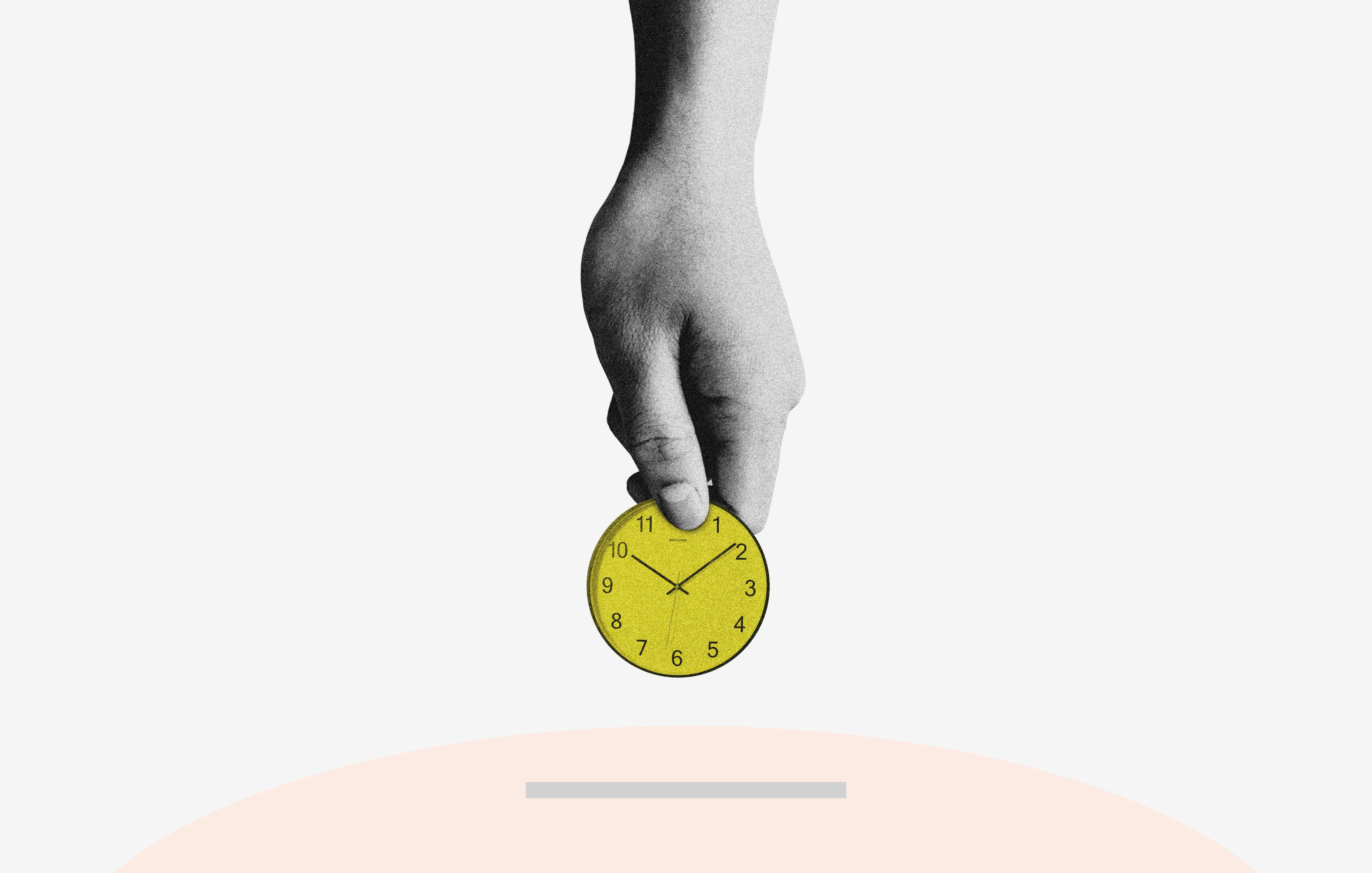
Let’s be real: technology is supposed to make life easier, but half teh time it feels like it’s quietly stealing minutes from your day. You know the drill-hunting for that one setting, retyping the same thing for the hundredth timeor staring at a spinning wheel while your laptop “thinks.” Annoying, right? The good news is you don’t need to become a tech wizard to win back some time. These 10 rapid tech tips are simple, practicaland designed to slot right into your daily routine. No elaborate setups, no jargon overload-just handy little shortcuts that’ll save you time and maybe a bit of sanity. Ready? Let’s dive in.
Turn Keyboard Shortcuts Into Muscle Memory for Everyday Tasks
think of shortcuts as tiny ninja moves for your keyboard. Don’t try to memorize a giant list-pick two that match your daily chaos and force yourself to use them even when your mouse is begging for attention. A week of mild annoyance beats a lifetime of menu hunting.
- Alt + Tab / Cmd + Tab: hop between apps without the cursor marathon.
- Ctrl/Cmd + Shift + T: resurrect that tab you closed by accident.
- Win + L / Ctrl + Cmd + Q: lock your screen before you walk away.
Then build a small “greatest hits” stack for repeat chores. Keep the cheat sheet visible for a few days,say the action out loud once,and let your fingers do the boring work. Before long you’ll reach for the keys before your brain even finishes the thought.
- Start small:
Let Simple Automations Handle Repetitive Clicks and Typing
Your keyboard is secretly a tiny robot waiting for better instructions. Use a text expander to turn short triggers into full email intros, signatures, meeting linksor that one address you keep typing wrong. Pair it with keyboard shortcuts for apps you live inand add a clipboard manager so copied links, code snippetsand phone numbers stop disappearing into the void. Here are easy wins:
- Email boilerplate: type
;brband let it expand into “Thanks for the note – I’ll get back to you by tomorrow.” - Meeting links: save your Zoom/Meet room as a shortcut, not a scavenger hunt.
- Form fillers: store your shipping details once; paste them forever.
For click-heavy chores, record a macro in your browser or OS: open the same three tabs, export that weekly report, rename files in a batchor clear the same dashboard filters. Keep it small, test it once, then let it run while you sip coffee. A quick cheat sheet helps:
Tiny task Automation idea Weekly report export One-click macro Repeated email intro Text expander shortcut Same form details Saved autofill profile 
Use Inbox Filters and Quick Replies to Clear Email Faster
Treat your inbox like a nightclub with a guest list, not a crowded bus station. A couple of smart filters can quietly send client emails to an “Action” folder, tuck receipts into “Money Stuff,” and keep newsletters out of your face until coffee break. Here are three easy rules to steal:
- VIP senders → label, starand keep visible
- Receipts & invoices → auto-archive for tax time
- Newsletters → skip inbox, read when you’re bored
Now add quick replies for the messages you type on repeat-“Got it, thanks!” “I’ll review this by Friday,” “Can we chat tomorrow?”-and you’ll cut your typing time in half. Use this mini cheat sheet as a starting point:
Email moment filter move Quick reply Client request Label “Action” “On it-ETA by 3pm.” Receipt Archive “Receipts” “Thanks, got it.” Meeting ask Star + “Calendar” “Send a time that works?” Pin Your go To Apps and Files for One Click Access
your most-used tools deserve VIP parking,not a daily scavenger hunt.Park your everyday apps and folders where your cursor already lives-the taskbar, Dock, Start menuor phone home screen-so opening them becomes muscle memory. A few smart shortcuts are enough to shave off those tiny “where did I put that?” pauses that add up fast.
- Browser: keep email, calendarand your project board as pinned tabs.
- Folders: stick your current project or invoice folder in Quick Access or the desktop.
- Mobile: add your notes app and cloud drive to the home screen for instant capture.
make it a five-minute setup: choose the tools you touch before lunch, then group the rest into a “Today” folder or a tidy tab stack. Keep the list short and ruthless-if you haven’t opened it in two weeks, it doesn’t earn a spot. Here’s a simple starter map:
Everyday item Smart spot Quick win Email & calendar Taskbar or Dock No tab hunt Current project folder Desktop or Quick Access Fewer clicks Notes app Phone home screen Faster capture Q&A
Q&A: 10 Quick Tech Tips That’ll Save You Time
Q: So, what’s this article actually about?
A: It’s a roundup of 10 super simple tech tricks that help you stop wasting time on little stuff-think faster searches, smarter shortcuts, fewer clicksand less “where did I save that file?” panic. Nothing scary, nothing fancy. Just quick wins.Q: I’m not exactly a tech wizard. Will these tips still work for me?
A: Absolutely. These are beginner-friendly tips. If you can copy, pasteand click around without breaking a sweat, you’re good to go. No coding, no complicated setups, no “just configure your BIOS” nonsense.Q: Do I need to buy new apps or gadgets?
A: Nope. Most of the tips use stuff you already have-your browser, phone, keyboardor the apps you use every day. A couple might mention free tools, but you won’t need to open your wallet.Q: Which tip saves the most time?
A: Honestly, it depends on how you work.But keyboard shortcuts, text expansionand better search habits are usually the heavy hitters. Once they click, you’ll wonder how you ever lived without them.Q: Will these tips work on Mac, Windowsand phones?
A: Mostly, yes. A few are platform-specific,but the article calls that out. The general ideas-like using templates, cutting notification clutterand syncing stuff properly-work pretty much everywhere.Q: How long until I actually notice a difference?
A: Some tips save you time immediatly-like the next time you search for an email or open a browser tab. Others become automatic after a few days. Give them a weekand you’ll feel the difference.Q: What if I only have five minutes to spare?
A: Perfect. Pick one tip, try itand move on with your day.You don’t need to overhaul your whole workflow.Small tweaks stack up fast.Q: Can I share these tips with my team or my “technologically challenged” friend?
A: Please do. They’re meant to be shared.Just send them the article link and maybe a gentle “you’ll thank me later” message.In Conclusion
That’s a wrap!
Hopefully, at least a few of these tech tips gave you that “wait, why wasn’t I doing this already?” moment. You don’t have to adopt all ten at once-just pick one or two that fit your workflow and give them a try this week. Small tweaks really do add up to big time savings.
Got a favorite tip of your own? Drop it in the comments-I’m always up for stealing… er, borrowing a good idea. And if this saved you even five minutes today, share it with a friend who could use a little more time in their day too.
Now go forth, click smarterand enjoy all that extra time. 🚀
- Email boilerplate: type